GB WhatsApp for PC: Download, Install, and Setup Guide
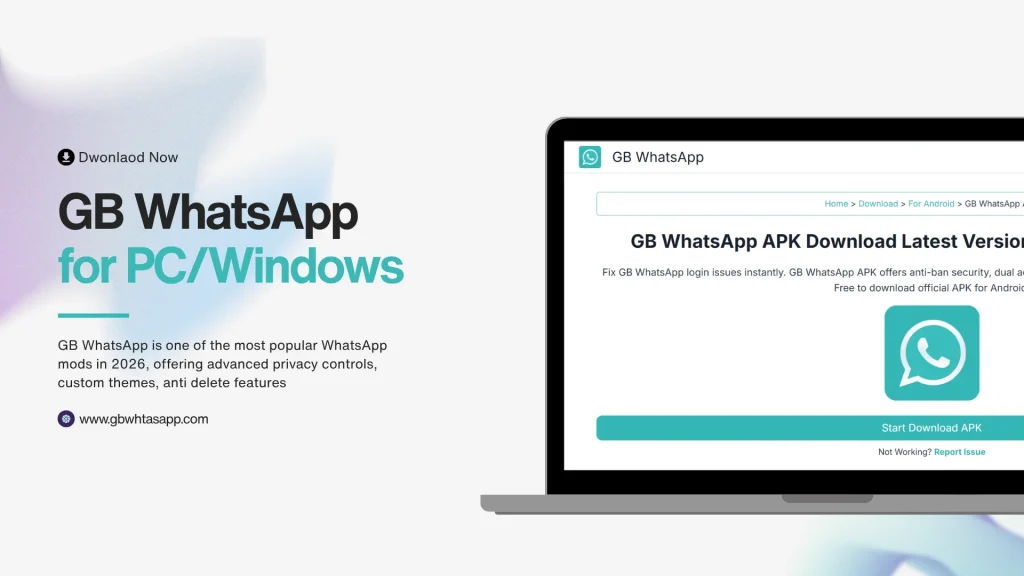
Many users want to enjoy GB WhatsApp on their computer for a larger screen experience, easier typing, and better multitasking. While there is no native GB WhatsApp application built for Windows or Mac, it is entirely possible to run it on a PC using an Android emulator. This guide from gbwhtasapp.com walks you through every step of the process.
Why Use GB WhatsApp on PC?
Using GB WhatsApp on a computer offers several advantages:
- Typing long messages is easier with a full keyboard
- The larger screen makes reading and viewing media more comfortable
- You can manage multiple apps simultaneously on a desktop
- Screenshots and file sharing are faster from a PC
- Students and professionals who work primarily on computers find it more convenient
What You Need Before You Start
- A Windows PC (Windows 7, 8, 10, or 11) or a Mac with macOS 10.14 or later
- At least 4GB of RAM (8GB recommended for smooth performance)
- At least 10GB of free disk space for the emulator and app
- A stable internet connection
- The GB WhatsApp APK file, downloaded from gbwhtasapp.com
- Your phone number for verification
Step 1 – Download an Android Emulator
The most commonly used emulator for running Android apps on PC is BlueStacks. It is free to download and widely trusted. Other options include LDPlayer and NoxPlayer, which are also reliable choices.
Visit the official website of your chosen emulator and download the installer. The installation file is typically between 400MB and 1GB.
Step 2 – Install the Android Emulator
Run the installer you downloaded. Follow the on-screen setup instructions. The emulator will set up an Android environment on your PC. This may take 5 to 15 minutes depending on your system.
Once installed, open the emulator and complete the initial Android setup, including signing into a Google account if prompted.
Step 3 – Download GB WhatsApp APK
On your PC browser, visit gbwhtasapp.com and download the latest GB WhatsApp APK file. Save it to a location you can easily find, such as your Desktop or Downloads folder.
Step 4 – Install GB WhatsApp in the Emulator
There are two ways to install the APK in your emulator:
Method A – Drag and Drop
Simply drag the downloaded APK file from your PC into the open emulator window. Most emulators will automatically detect the APK and begin installation.
Method B – APK Installer Tool
In the emulator, look for an APK Installer tool, usually visible in the sidebar. Click it and navigate to your downloaded APK file. Click Open to install.
Follow the on-screen instructions to complete the installation.
Step 5 – Set Up GB WhatsApp on PC
Open GB WhatsApp within the emulator. Enter your phone number with the correct country code. Request an SMS verification code. Enter the code when it arrives on your actual phone. Complete the profile setup.
Step 6 – Configure Settings for PC Use
After setup, adjust a few settings for better PC use:
| Setting | Recommended Configuration | Why |
| Notifications | Enable in emulator settings | Ensure you see new messages |
| Keyboard input | Set to emulator default keyboard | Better typing experience |
| Media access | Allow storage access | Enable file and media sharing |
| Display size | Adjust emulator window size | Optimize for your screen |
Transferring Chats to PC Version
Your chats will be independent of your phone’s GB WhatsApp. If you want to access the same account on PC, note that WhatsApp only allows one active instance per phone number at a time. Verifying the number in the emulator will log out the same number on your phone.
An alternative is to use WhatsApp Web, which is built into both official WhatsApp and GB WhatsApp, allowing you to mirror your mobile session on a browser without logging out your phone.
How to Use WhatsApp Web with GB WhatsApp
GB WhatsApp supports the WhatsApp Web feature. To use it:
- Open a web browser on your PC and go to web.whatsapp.com
- On your phone, open GB WhatsApp and tap the three-dot menu
- Select Linked Devices or WhatsApp Web
- Scan the QR code shown on your PC screen with your phone
- Your GB WhatsApp will mirror in the browser without logging out your mobile session
Troubleshooting Common PC Issues
Emulator Runs Slowly
Increase the allocated RAM in the emulator’s settings. Close other applications on your PC to free up resources.
GB WhatsApp Crashes in Emulator
Download a fresh APK from gbwhtasapp.com and reinstall. Also try updating your emulator to the latest version.
Verification Code Not Arriving
Make sure your phone is nearby and connected. The code goes to your actual phone, not to the emulator.
Frequently Asked Questions
Is there a dedicated GB WhatsApp app for Windows or Mac?
No. GB WhatsApp only runs on Android. The emulator method is the only way to use it on a PC.
Does using GB WhatsApp on an emulator increase ban risk?
Running the app in an emulator is similar to running it on an Android device. The same anti-ban precautions apply.
Can I use my existing chats when setting up on PC?
Not easily, as the phone number can only be active in one instance. Using WhatsApp Web through GB WhatsApp is a better option for PC access while keeping your phone active.
Is BlueStacks the best emulator for GB WhatsApp?
BlueStacks is the most popular choice due to its stability and user-friendly interface, but LDPlayer and NoxPlayer are also reliable.
How much data does GB WhatsApp use on PC?
Data usage is the same as on a mobile device since you are running the same Android application.
Conclusion
Running GB WhatsApp for PC is straightforward with the right emulator setup. While it requires a few more steps than mobile installation, the result is a full GB WhatsApp experience on a large screen with a keyboard. For the freshest and safest APK file to use in your emulator, always visit gbwhtasapp.com before starting the installation process.